


Microsoft Word’s dark mode changes the appearance of the entire interface to a darker theme. However, you can still keep the document page white while using dark mode. You can also switch Word back to light mode whenever you prefer.
How to Switch Word From Dark Mode to Light Mode
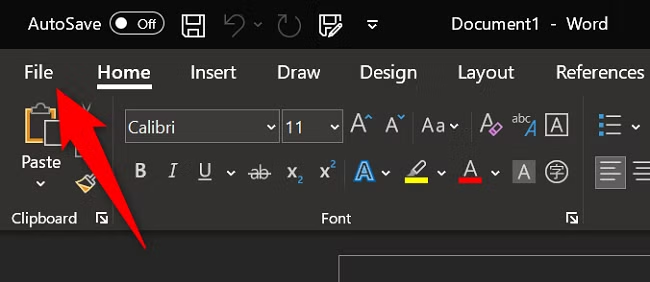
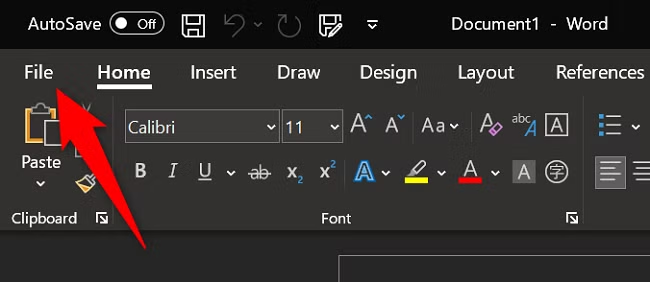
To turn off dark mode in Microsoft Word and return to light mode, click the File tab in the upper-left corner.
From the left sidebar, choose “Account.”

In the right-hand pane, find the Office Theme section. Open the drop-down menu and select White to switch Microsoft Word to light mode.
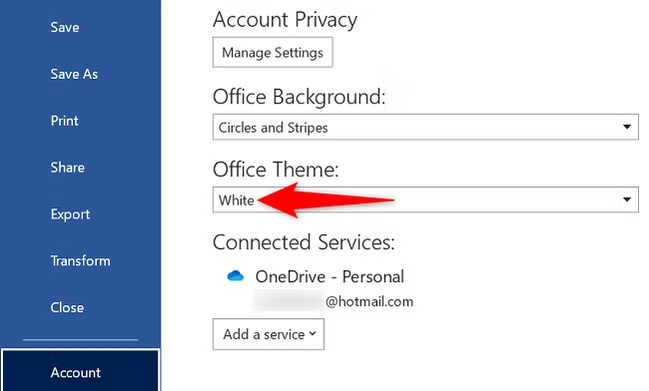
You can also choose the Colorful theme, which has a similar appearance to the White theme.
How to Toggle the Page Color When Using Dark Mode
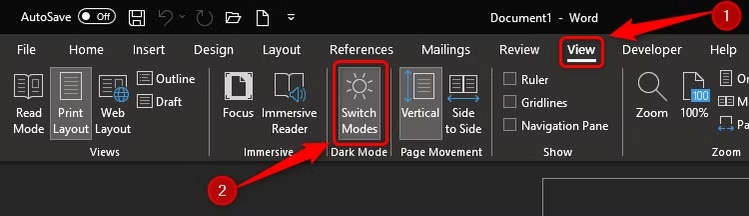
If you want to keep Word’s dark interface while using a white document page, open the View tab on the ribbon. In the Dark Mode section, click Switch Modes to change the page color.
To make Word always display a white page, even while dark mode is enabled, click the File tab in the upper-left corner.
From the left sidebar, select “Options.”
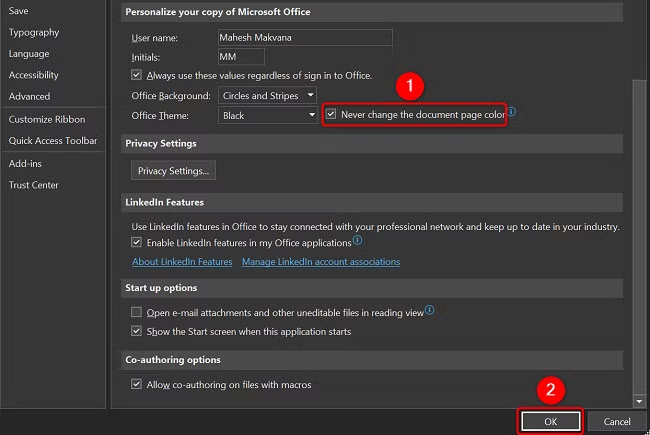
In the Word Options window, scroll to the Personalize Your Copy of Microsoft Office section. Next to the Office Theme menu, enable Never Change the Document Page Color.
Then click OK to apply and save the setting.
Whether you choose dark mode or light mode, the setting only changes how Word appears on your device and does not affect the document itself. If you plan to share the file, it is a good idea to check how the document looks with both light and dark page colors.
Frequently Asked Questions
How do I turn off dark mode in Microsoft Word?
Open File, go to Account, and find the Office Theme option. Select White or Colorful to switch Word back to a lighter appearance.
Can I keep Word in dark mode but make the document page white?
Yes. Open the View tab and select Switch Modes in the Dark Mode section. This lets you keep the dark interface while displaying the document page in white.
Why is my Word document page black?
The page may appear black because Word’s dark mode is also changing the document canvas. You can use Switch Modes under the View tab to return the page to white.
Does turning off dark mode change my Word document?
No. Changing the Office theme only affects how Microsoft Word appears on your device. It does not permanently change the document’s actual page color or formatting.
How can I make Word always show a white document page?
Go to File > Options, scroll to the personalization settings, and enable Never Change the Document Page Color. This keeps the page white even when the Word interface uses dark mode.
What is the difference between the White and Colorful themes in Word?
Both themes provide a light interface. The White theme uses a mostly neutral white appearance, while the Colorful theme adds Microsoft Office accent colors to parts of the interface.
Will changing dark mode settings affect documents I share with others?
No. Dark mode settings are tied to your Word viewing preferences. Other people will see the document according to their own Word theme and display settings.
Conclusion
Turning off dark mode in Microsoft Word is simple and can make the interface easier to use if you prefer a brighter workspace. By changing the Office Theme to White or Colorful, you can quickly switch Word back to a light appearance.
If you like the dark interface but want a white document page, you can use the Switch Modes option or keep the page color permanently white through Word’s settings. These options let you customize Word’s appearance without changing the actual content or formatting of your document.
