


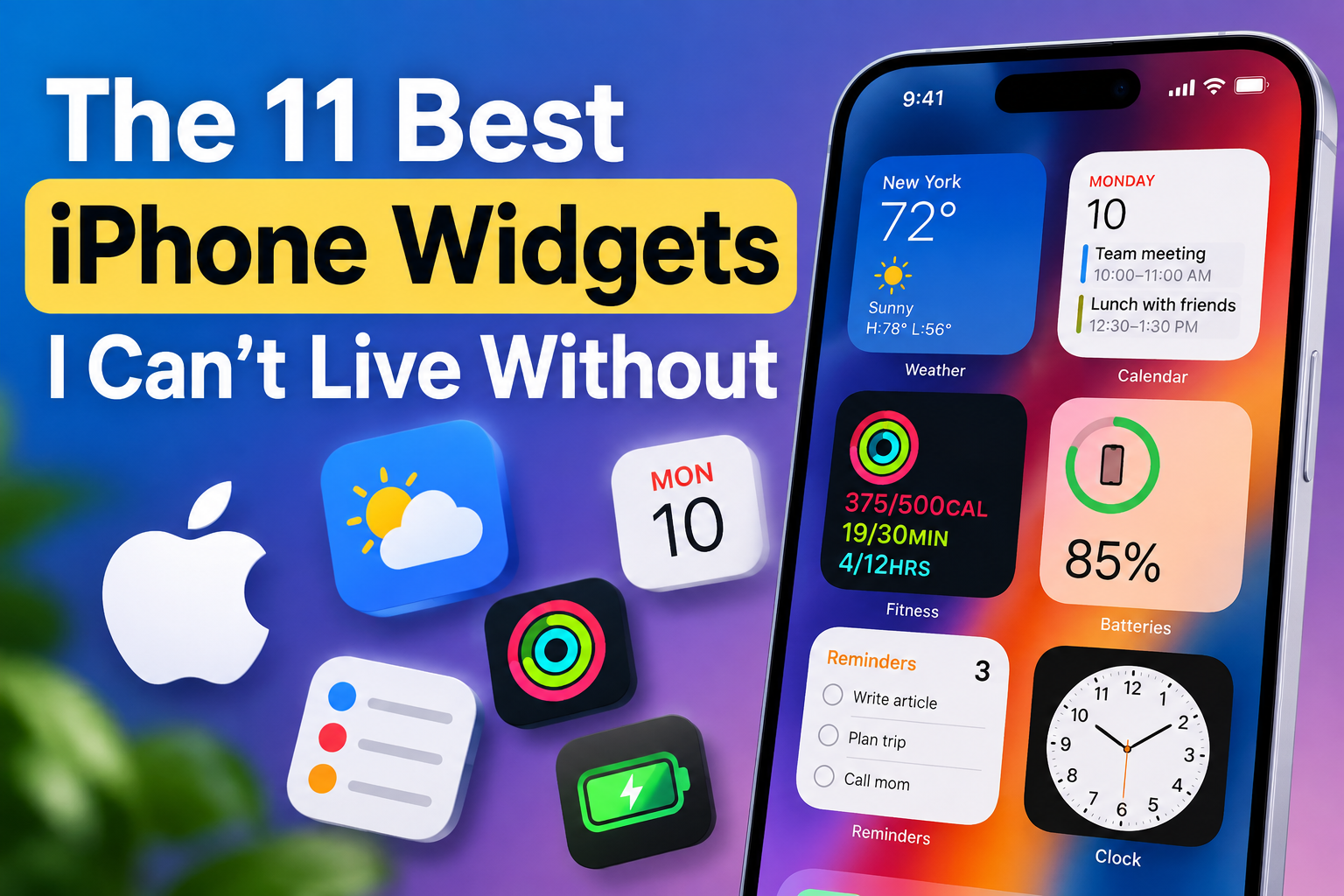
Widgets make it easy to access useful information right from your home screen. You can quickly check the weather, monitor your device’s battery levels, and keep track of daily reminders without opening multiple apps. Here are some of my favorite widgets.
Weather
The Weather widget is one of my favorites because it provides quick access to current conditions and forecasts directly from the home screen. Whether I’m choosing what to wear, planning errands, or scheduling an outdoor walk, it helps me organize my day without opening the app.
When traveling, I can also add different cities to keep track of the weather at my destination. Since the widget comes with the iPhone’s built-in Weather app, there’s no need to install a third-party weather app for basic forecasts and updates.
Launcher
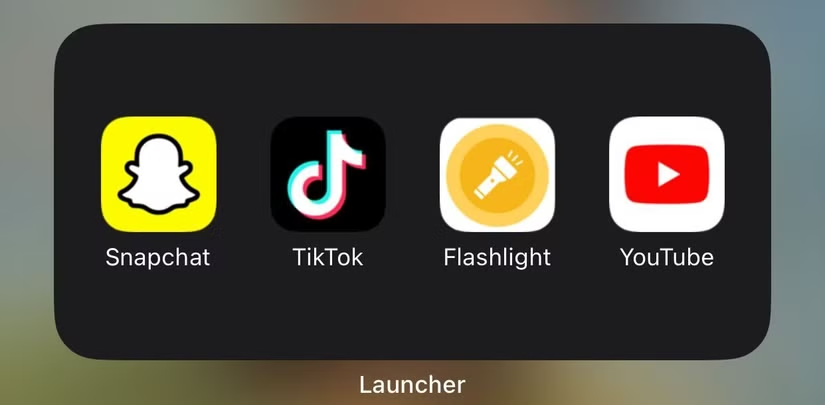
I used to waste time scrolling through app icons whenever I wanted to open the apps I use most. The Launcher widget makes this much easier by placing shortcuts to frequently used apps directly on the iPhone Home Screen.
After installing the app, you can create a widget and add your favorite or most-used apps to it. Once set up, the widget displays app icons for quick access, helping you open them with fewer taps. The app is free to use, while its premium version includes additional features.
Battery
If you use several Apple devices, the Battery widget is a convenient way to keep track of their power levels. It shows the battery status of your iPhone along with connected devices such as AirPods and Apple Watch, so you don’t have to check each one separately.
With the widget on your iPhone’s Home Screen, you can quickly see which devices need charging and recharge them before the battery gets too low.
Pedometer++
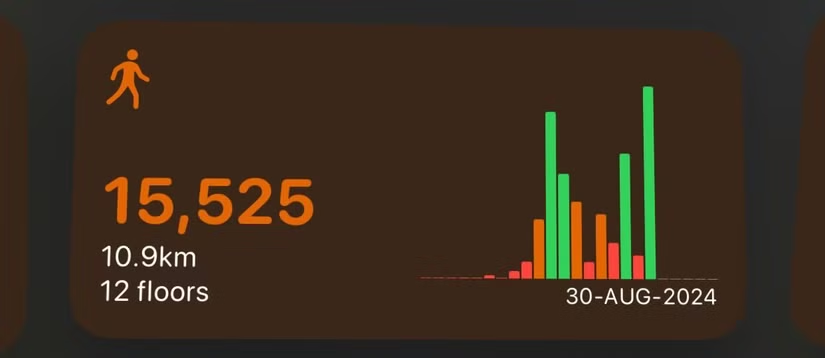
Staying active every day is important to me, and Pedometer++ makes it easy to keep track of my physical activity. The app lets me set daily goals, while its widget displays useful stats such as steps taken, distance traveled, and floors climbed directly on my Home Screen. This makes it easy to check my progress at a glance.
Pedometer++ uses the iPhone’s built-in sensors to track activity. After granting the required permissions, it works automatically without requiring a complicated setup.
Screen Time
I regularly keep track of how much time I spend on my iPhone, and the built-in Screen Time widget makes this easy. It shows my daily usage by app and category directly on the Home Screen, giving me a quick overview of where my time is going.
Seeing this information at a glance also reminds me to cut back on apps that take up too much of my day. If you already use Screen Time, adding its widget can make it easier to stay aware of your phone usage.
Chrome Dino
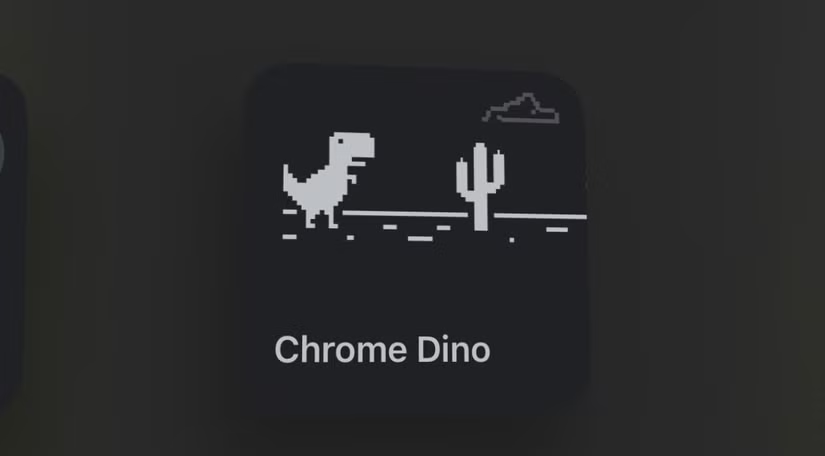
I enjoy playing the classic Chrome Dino game, especially when I want a quick way to pass the time. With the Chrome Dino widget, I can access the game directly from my iPhone’s Home Screen without opening the Chrome browser first.
To add it, install the Chrome app and choose the Chrome Dino widget from the available widget options. Once added, simply tap the widget whenever you want to start playing.
Shortcuts
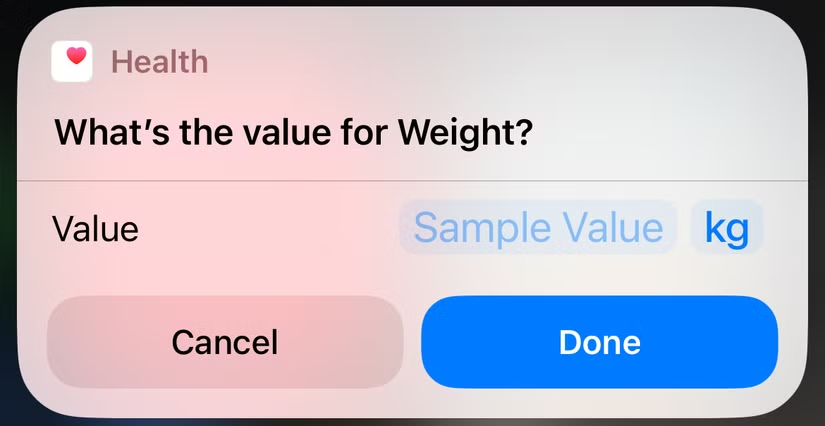
Shortcuts
I use the Shortcuts app on my iPhone to automate everyday tasks and make common actions faster. Its widget brings my most frequently used shortcuts directly to the Home Screen, allowing me to run automated tasks with a single tap.
I can use it to send a morning message, control smart home devices, start a favorite playlist, log information, or perform other repetitive tasks. Instead of opening the Shortcuts app each time, I can simply tap the shortcut I need from the Home Screen.
If you regularly automate tasks on your iPhone, the Shortcuts widget can save time and make your daily routine more convenient.
Brave Search
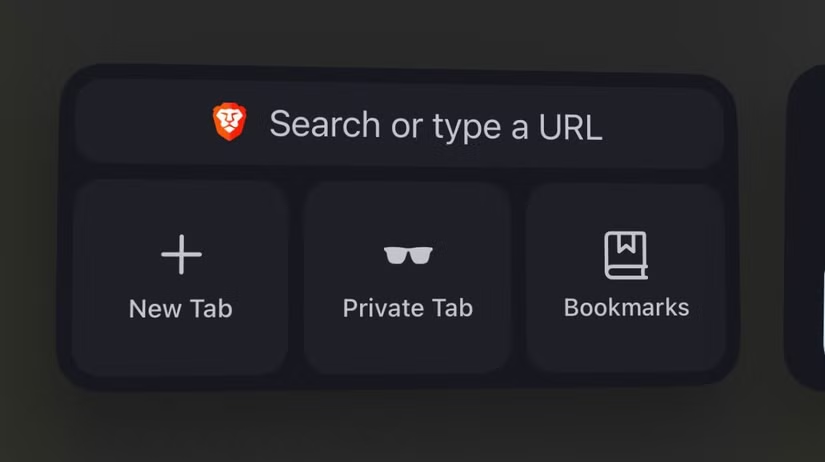
I use the Brave browser as my primary browser on my iPhone because of its focus on privacy. It offers several widgets, but the Brave Shortcuts widget is especially useful because it provides quick access to search and other browser features directly from the Home Screen.
The widget can also display shortcuts to features such as Private Tab, Bookmarks, and Brave Playlist, making them easier to access without navigating through the browser. To use the widget, simply install the Brave browser app and add it to your Home Screen.
Reminders
I use the Reminders app on my iPhone to organize my to-do lists, and its widget makes it easy to view daily tasks directly from the Home Screen. It gives me a quick look at what still needs to be done without opening the app.
The widget does have some limitations, so I may still need to open the Reminders app to check additional task details or manage completed items. Even so, it remains a useful way to keep upcoming tasks visible throughout the day.
Countdown
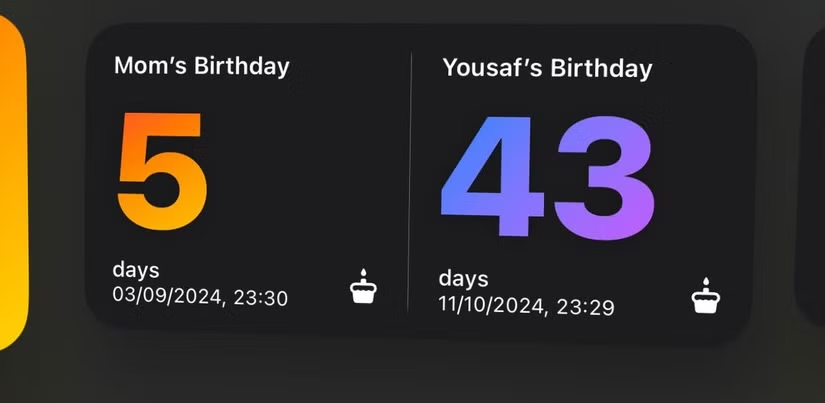
Some events are too important to forget, such as birthdays, special occasions, or project deadlines. I use the Countdown app to keep track of these dates directly from my iPhone’s Home Screen.
The widget shows how much time is left until an event, including days, hours, and minutes. This makes it easier to stay aware of upcoming occasions and plan ahead without constantly checking the app.
To use it, install the Countdown app, add the events you want to track, and place the widget on your Home Screen for quick access.
Merriam-Webster’s Dictionary
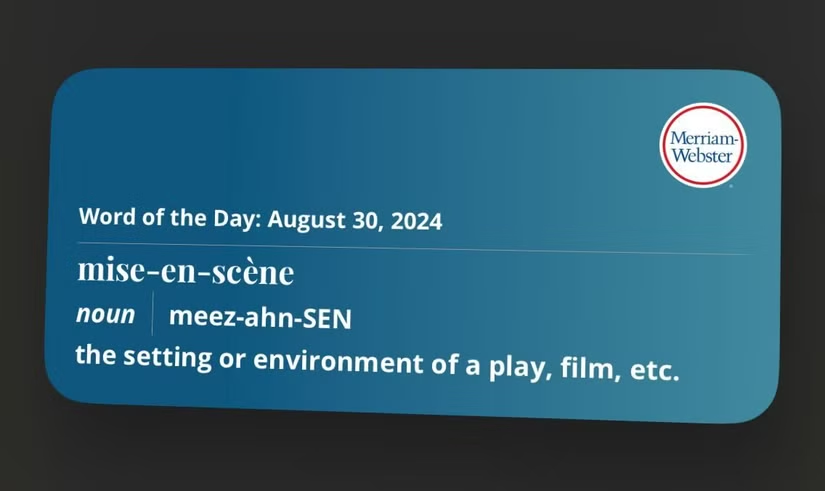
As a freelance writer, I’m always looking for ways to improve my vocabulary, and the Merriam-Webster Dictionary widget makes that easy. It displays a new word on my iPhone’s Home Screen each day, along with its definition and other useful details.
If I want to learn more, I can tap the widget to open the app and explore example sentences, additional meanings, and information about the word. After installing the Merriam-Webster Dictionary app, simply add its widget to your Home Screen to discover new words every day.
To add widgets to your iPhone, press and hold an empty area of the Home Screen until the icons begin to move, then use the option to add a widget and choose the one you want.
These are some of the widgets I find most useful on my iPhone. Adding the right widgets to your Home Screen can save time and make important information easier to access. You can also explore other widget-supported apps to personalize your iPhone even further.
FAQs About the Best iPhone Widgets
What are iPhone widgets?
iPhone widgets are small app panels that display useful information or provide quick access to features directly from the Home Screen without requiring you to open the full app.
Which iPhone widgets are the most useful?
Useful widgets depend on your daily needs, but popular options include Weather, Battery, Screen Time, Reminders, Shortcuts, Countdown, and productivity or fitness widgets.
Do iPhone widgets drain the battery?
Most widgets use very little battery. However, widgets that frequently update information, such as weather, location, or activity widgets, may use slightly more power.
Can I customize iPhone widgets?
Yes. Many widgets allow you to choose different sizes, information types, locations, lists, or shortcuts depending on the app and available customization options.
Can I add third-party widgets to my iPhone?
Yes. Many apps from the App Store offer their own widgets, allowing you to add extra features and information to your Home Screen.
How do I add a widget to my iPhone Home Screen?
Press and hold an empty area of the Home Screen, choose the option to add a widget, select the widget you want, choose its size, and add it to your preferred location.
Are iPhone widgets available for free?
Many built-in and third-party widgets are free, although some apps may require a subscription or premium version to access certain widget features.
Conclusion
The best iPhone widgets make everyday tasks faster by putting useful information and shortcuts directly on the Home Screen. Whether it’s checking the weather, monitoring battery levels, tracking activity, managing reminders, or launching favorite tools, the right widgets can reduce the time spent opening and switching between apps.
The 11 widgets covered here are useful for productivity, organization, entertainment, and everyday convenience. You may not need every one of them, but choosing the widgets that match your routine can make your iPhone feel more personal, efficient, and easier to use throughout the day.
