


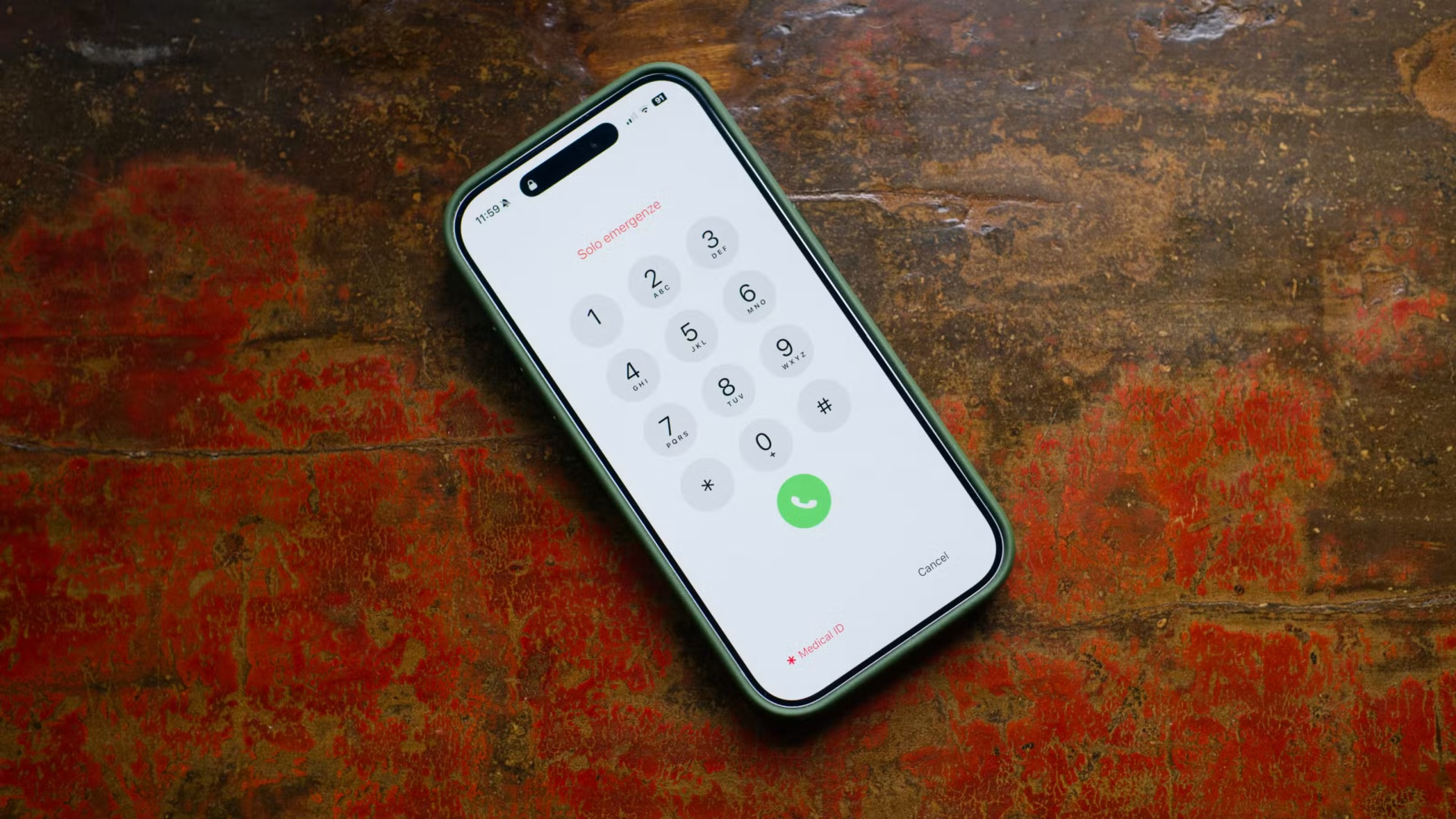
You can add one or more emergency contacts to your iPhone so they can be reached quickly during an urgent situation. Setting this up only takes a few minutes and can be an important safety feature to have enabled on your device.
What Is an Emergency Contact?
An emergency contact is someone already saved in your iPhone’s Contacts app who is given additional access for emergency situations.
There are two main reasons to set up an emergency contact on your iPhone.
The first is to include them in your Medical ID as someone who should be contacted in an emergency. Your Medical ID can be accessed from the Lock Screen and may contain important information such as your name, allergies, blood type, medical conditions, and emergency contacts.
To access Medical ID on an iPhone, press and hold the Side button and either volume button until the emergency options appear, then select Medical ID. It can also be accessed through the Emergency option on the passcode screen. On an Apple Watch, Medical ID can be opened by pressing and holding the Side button.
Note: Medical ID is an important iPhone safety feature. If you have not set it up yet, you can do so through the Health app.
If you are ever in a situation where someone needs to contact a family member or another trusted person on your behalf, they can view your emergency contacts through Medical ID without unlocking your iPhone.
The second reason to add emergency contacts is related to Emergency SOS. When you use Emergency SOS on your iPhone or Apple Watch, your emergency contacts can automatically receive a notification informing them that you have contacted emergency services. Depending on your settings and location, your current location may also be shared with them.
On an iPhone, Emergency SOS can be activated by pressing and holding the Side button and a volume button, then using the Emergency SOS slider. It can also be configured to activate through repeated button presses.
You can also allow certain contacts to bypass Silent Mode or Focus settings using Emergency Bypass. This means calls or messages from that person can still make a sound even when your iPhone is silenced. Emergency Bypass can be enabled for any contact and does not require them to be listed as an emergency contact.
How to Add an Emergency Contact on Your iPhone
You can add an emergency contact either from a person’s contact card or through the Health app on your iPhone.
To add one from a contact card, open the Phone app and go to the Contacts tab. Select the person you want to add. You can also open the Recents tab and tap the information icon next to their name.
Scroll to the bottom of the contact card, then tap Add to Emergency Contacts.
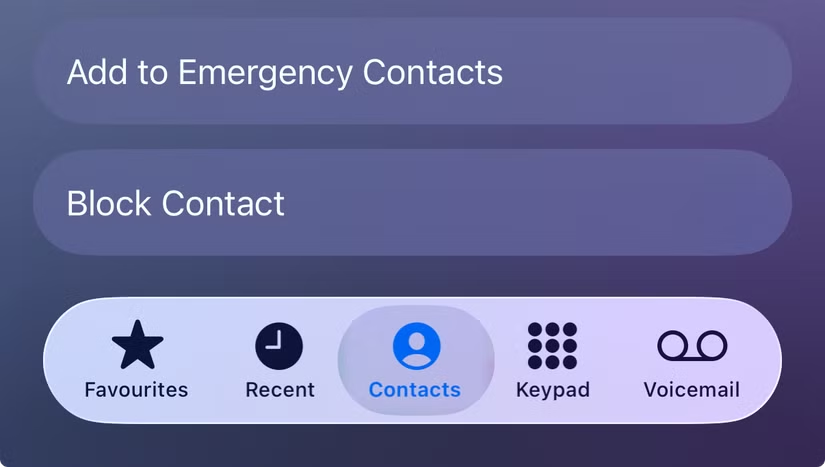
Choose a label that best describes your relationship, or tap on “Add Custom Label” to add your own:

Your Medical ID will then open, showing the selected person under the Emergency Contacts section. Tap Done to save the changes.
To remove someone later, open their contact card again and tap Remove from Emergency Contacts.
Manage Emergency Contacts in the Health App
You can also manage your emergency contacts directly through the Health app. Open the Health app, tap your profile icon in the top-right corner, then select Medical ID.
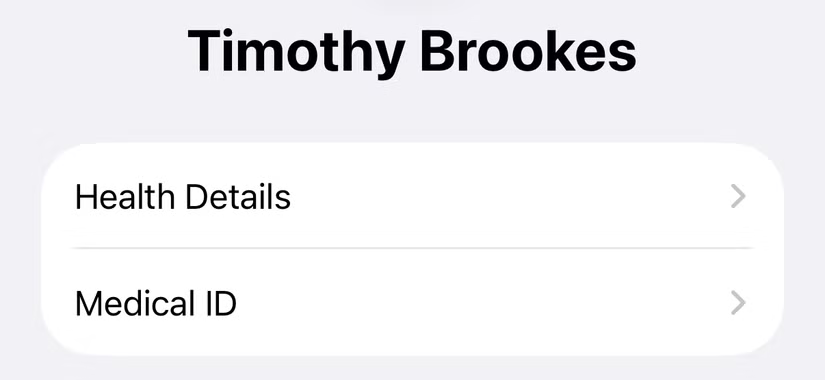
Scroll down to the “Emergency Contacts” field and tap “Edit” to make changes.
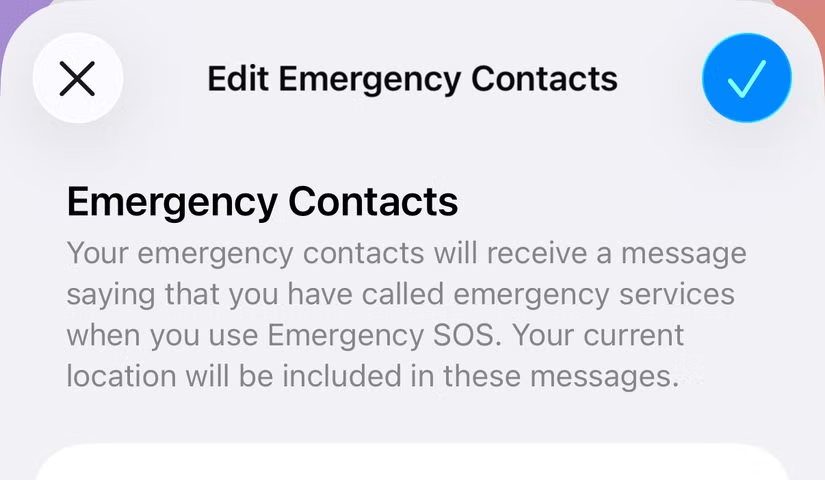
From here, tap Add Emergency Contact at the bottom of the screen. Choose a person from your contacts, then select their relationship to you.

You can also remove an emergency contact from this section. While editing your Medical ID, tap the minus icon next to the person’s name, then confirm the removal.
How to Enable Silent Mode Bypass for a Contact
If you want calls or messages from a specific contact to make a sound even when your iPhone is on Silent Mode, you can enable Emergency Bypass for that person.
Open the Phone app, go to the Contacts tab, and select the contact you want to update. Tap Edit in the top-right corner, then choose either Ringtone or Text Tone.
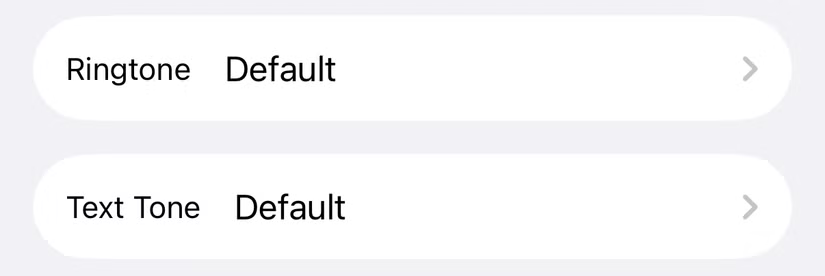
On the next screen, turn on Emergency Bypass to allow alerts from that contact to sound even when your iPhone is silenced.
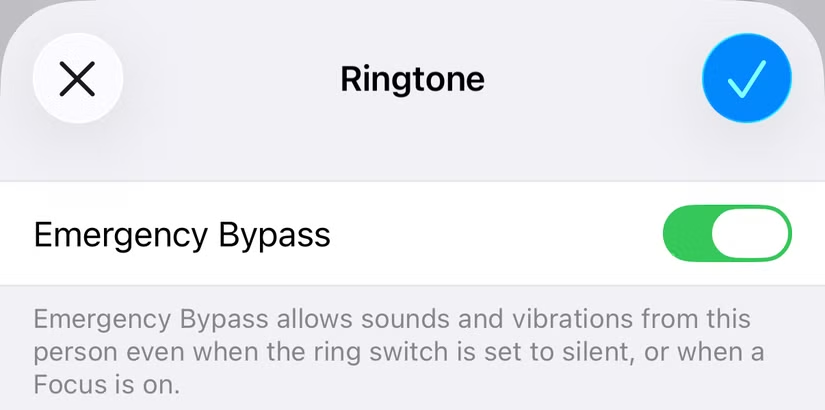
If you want both calls and messages to make a sound, you’ll need to enable Emergency Bypass separately for Ringtone and Text Tone.
Fill Out Your Medical ID Too
Your Medical ID can be very helpful during an emergency, particularly if you have allergies, existing health conditions, or take medication regularly. You can also include useful details such as your blood type and primary language.
The Health app can do more than store your Medical ID and emergency contacts. It can also help you track weight changes, organize supported health records, and keep an eye on your mood and overall well-being.
FAQs About Setting an Emergency Contact on iPhone
How do I set an emergency contact on my iPhone?
Open the Health app, tap your profile picture, select Medical ID, then choose Edit. Scroll to the Emergency Contacts section, tap Add Emergency Contact, select a person, and choose their relationship to you.
Can I add more than one emergency contact on my iPhone?
Yes. You can add multiple emergency contacts to your Medical ID, which can be useful if you want family members, friends, or caregivers to be reachable during an emergency.
Can emergency contacts be called without unlocking my iPhone?
Yes. Emergency contacts listed in your Medical ID can be viewed from the emergency screen without unlocking the device, depending on your Medical ID settings.
Do emergency contacts receive a notification when I use Emergency SOS?
Emergency contacts may receive a message after you use Emergency SOS. Your location may also be shared with them when supported by your device, settings, and region.
Can I remove an emergency contact later?
Yes. Open your Medical ID in the Health app, tap Edit, and remove the person from the Emergency Contacts section. You can also manage this from the contact’s card in some iOS versions.
Does an emergency contact bypass Silent Mode automatically?
No. Being listed as an emergency contact does not automatically allow calls or messages to bypass Silent Mode. You need to enable Emergency Bypass separately in that person’s contact settings.
What information should I include in my Medical ID?
It is useful to include important medical details such as allergies, medical conditions, medications, blood type, and emergency contacts. Keeping this information updated can help others respond more effectively during an emergency.
Conclusion
Setting an emergency contact on your iPhone is a simple step that can make a big difference in a critical situation. By adding trusted people to your Medical ID, you make it easier for others to reach someone close to you if you are unable to communicate.
It is also worth keeping your Medical ID updated with important health details and reviewing your emergency contacts from time to time. With Emergency SOS, Medical ID, and Emergency Bypass properly configured, your iPhone can become a more useful safety tool when you need help most.
