


Google Docs usually uses a light theme by default, but you can switch to dark mode on Android, iPhone, iPad, and desktop browsers such as Google Chrome and Microsoft Edge.
This guide focuses on Google Docs, but the same steps also apply to Google Sheets and Google Slides.
Enable Dark Mode in Google Docs on Google Chrome
On desktop versions of Google Chrome for Windows, Mac, and Linux, you can force Google Docs to appear in dark mode. Keep in mind that this method may also apply dark mode to other websites, not just Google Docs.
The option may be available through Chrome’s experimental flags, so it can behave differently depending on your browser version.
Warning: Chrome flags are experimental features and may not work as expected on every device. In some cases, they can affect browser stability or performance. Use them with caution and enable them at your own risk.
Type “chrome://flags” into the address bar at the top of your Google Chrome browser.
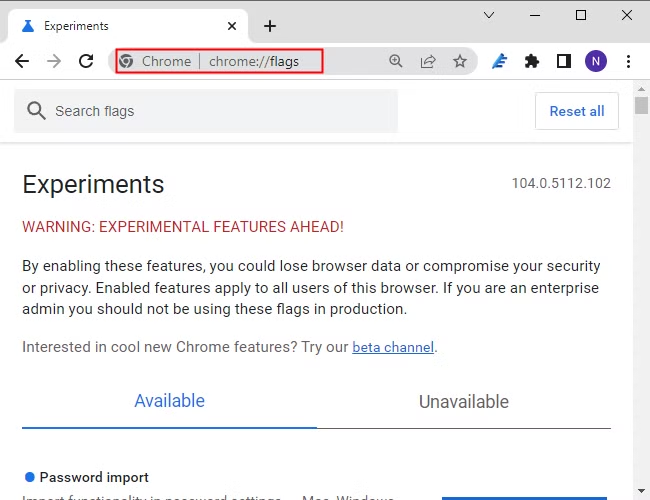
Use the search box at the top to look for “dark mode.”

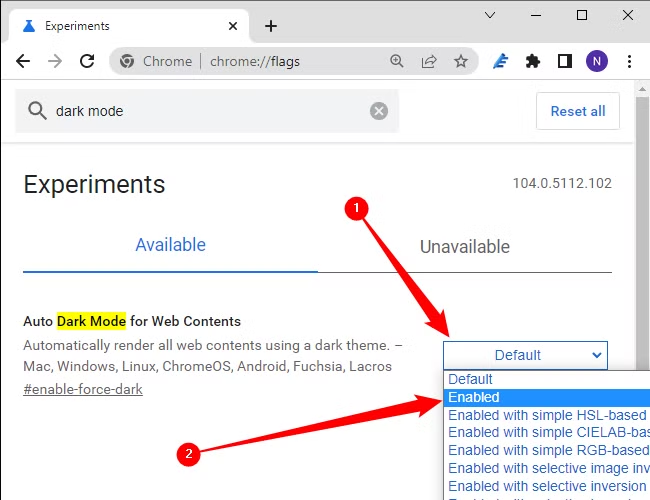
Click the drop-down menu next to Force Dark Mode for Web Contents and select “Enabled.”
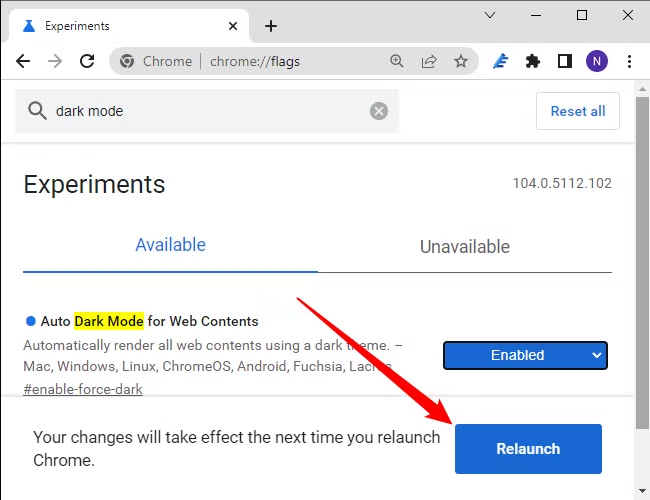
Chrome will show you a prompt asking you to relaunch the browser to apply these changes. Make sure that you don’t have any unsaved work in the browser, and then click “Relaunch.”
Open Google Docs, and the interface should now appear in dark mode, with a dark background and light-colored text.
Enable Dark Mode in Google Docs on Microsoft Edge
Google Chrome is not the only Chromium-based browser that can force websites into dark mode. Microsoft Edge also includes a similar experimental flag.
To get started, open Microsoft Edge, type edge://flags into the address bar, and press Enter.
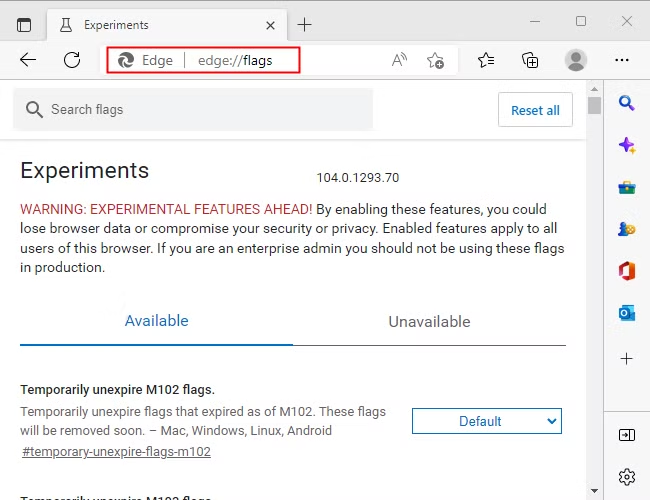
Type “dark mode” into the search bar at the top.

Click the drop-down menu next to “Auto Dark Mode for Web Content,” then select “Enabled.”
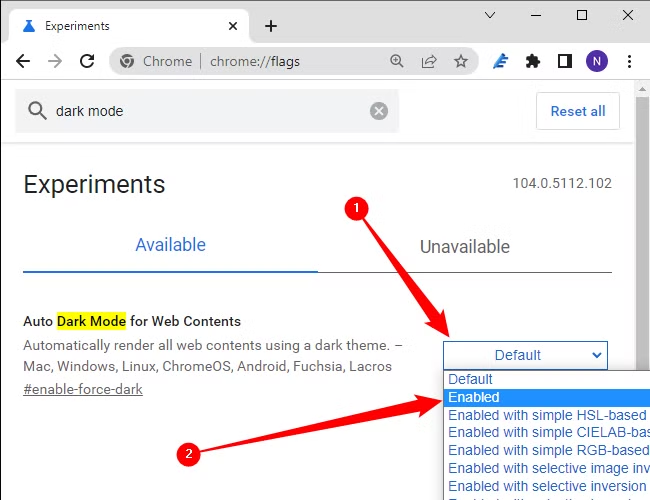
Click “Restart” on the popup that appears at the bottom.

Microsoft Edge will try to display supported websites in dark mode. However, because some websites are not designed for forced dark themes, certain pages, images, or text may not appear correctly.
Enable Dark Mode in Google Docs on Android or iPhone
The Google Docs app on Android and iPhone makes it easy to switch between light and dark themes. If your phone is already using system-wide dark mode, Google Docs may follow that setting automatically.
If you want to enable dark mode only in Google Docs, open the app and tap the three-line menu icon in the top-left corner.

Next, select “Settings.”
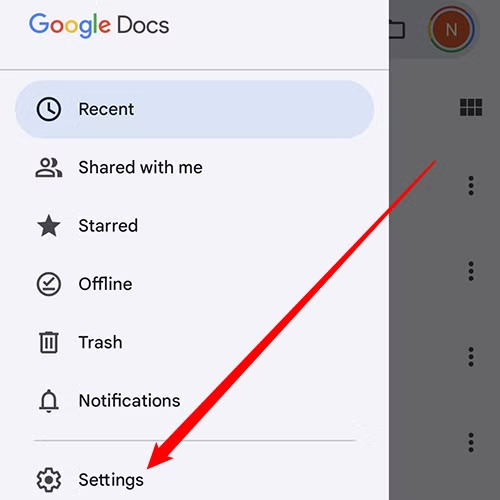
Now, choose the “Theme” option, which will allow you to pick dark mode. This option is called “Choose Theme” on Android.
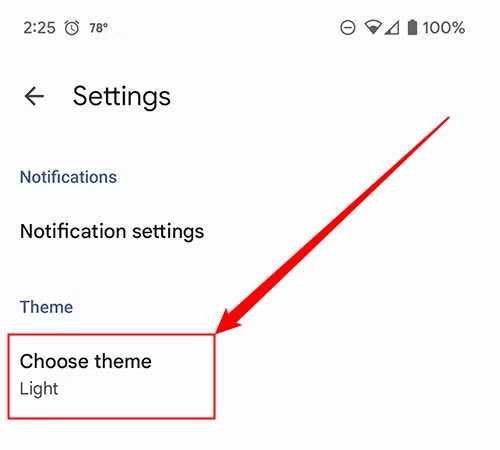
Select “Dark.”
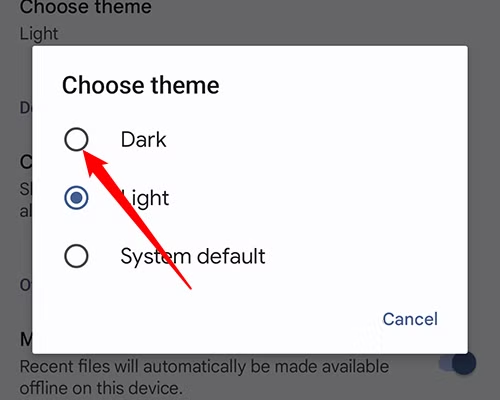
All Google Docs documents will now open using the dark theme. If you prefer to view a specific document in light mode, open that document and tap the three-dot menu icon in the top-right corner.
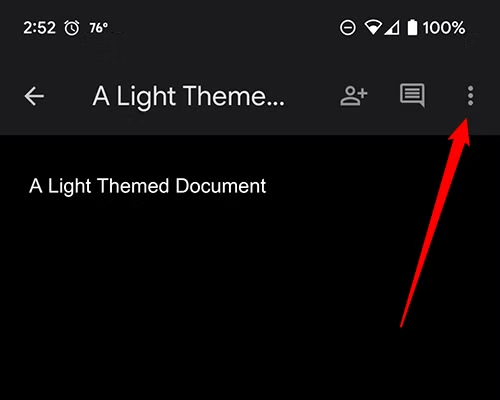
Tap on “View in Light Theme.”

The Google Docs app interface will remain in dark mode, but the document page itself will switch to a light theme with a white background and dark text.
This change only affects the document you are currently viewing. If you close and reopen it, the document will return to dark mode, and other documents will not be affected.

Now that you’re using Google Docs, you may also want to learn how to check recent changes made to your documents. Another useful feature worth exploring is voice typing, which lets you create and edit text using your voice.
Frequently Asked Questions
How do I turn on dark mode in Google Docs?
On Android and iPhone, open the Google Docs app, go to Settings > Theme, and choose Dark. On desktop, dark mode may require a browser setting, experimental flag, or extension.
Does Google Docs have a built-in dark mode on desktop?
Google Docs does not always offer the same built-in dark theme options on desktop as it does on mobile. You may need to use your browser’s dark mode features or a compatible extension.
How do I enable dark mode in Google Docs on Android?
Open the Google Docs app, tap the menu icon, select Settings, choose Theme, and then select Dark.
How do I enable dark mode in Google Docs on iPhone?
Open Google Docs, go to Settings > Theme, and choose Dark. The app may also follow your iPhone’s system-wide dark mode setting.
Can I view a single Google Docs document in light mode while dark mode is enabled?
Yes. On mobile, open the document, tap the three-dot menu, and use the option to view the document in a light theme.
Does dark mode change the actual document formatting?
No. Dark mode only changes how the document appears on your screen. It does not permanently change the page background or text colors in the document itself.
Why does Google Docs dark mode look strange in Chrome or Edge?
Forced dark mode in browsers can sometimes affect colors, images, or page elements incorrectly because not every website is designed for it. Disabling the browser flag usually fixes these display issues.
Conclusion:
Turning on dark mode in Google Docs can make the interface more comfortable to use, especially in low-light environments. On Android and iPhone, you can switch themes directly in the app, while desktop users may need to rely on browser settings, flags, or extensions. If dark mode causes any display issues on the web, you can always switch back to the standard light theme.
